
Android phones come with sensible default settings for the average user — but the average user isn’t you. A few minutes adjusting the right settings can meaningfully improve your battery life, protect your privacy, speed up your experience, and unlock features you didn’t know existed.
Most of these changes take less than thirty seconds each. Here are the ten settings worth changing right away.
1. Turn Off App Permissions You Never Agreed To
When you install an app, it asks for permissions. But many apps request far more access than they actually need — and some permissions get granted without you realizing it.
Go to Settings → Privacy → Permission Manager and review which apps have access to your location, microphone, camera, and contacts. You’ll likely find apps that have no business accessing these things.
Revoke anything that doesn’t make sense. A weather app needs your location. A calculator does not. A shopping app does not need your microphone unless you’ve explicitly used a voice search feature.
This is one of the most impactful privacy changes you can make on Android. According to Google’s own privacy documentation, apps on Android 13 and above must request permissions at runtime — meaning you have full control over what each app can access.
2. Enable Google Play Protect
Google Play Protect scans apps on your device for malicious behavior and alerts you if something looks suspicious. It’s built into Android and free, but it needs to be enabled.
Go to Play Store → tap your profile photo → Play Protect → turn it on.
While you’re there, tap Scan to run an immediate check on all installed apps. This takes less than a minute and gives you a baseline of what’s on your device.
3. Set Up a Screen Lock You’ll Actually Use
If you’re still using a short PIN or — worse — no lock screen at all, now is the time to change that. Your phone contains your email, banking apps, passwords, and personal photos. An unlocked phone in the wrong hands is a serious problem.
Go to Settings → Security → Screen Lock and set up one of the following:
- Fingerprint — fast and convenient, available on most modern Android phones
- Face unlock — quick but less secure than fingerprint on most devices
- Strong PIN (6+ digits) — more secure than a 4-digit PIN
- Password — most secure option for those who want maximum protection
Avoid pattern locks — they’re easy to guess from smudge marks on the screen.
4. Adjust Your Location Settings
Your phone’s GPS is one of the most battery-draining features it has — and many apps use it constantly in the background without a clear reason.
Go to Settings → Location and review two things:
First, check which apps have “Allow all the time” location access. This means the app can track your location even when you’re not using it. Unless it’s a navigation or fitness tracking app with a clear reason to do so, change this to “Only while using the app” or “Deny”.
Second, consider turning off Wi-Fi scanning and Bluetooth scanning under Location → Location Services. These features help apps detect your location even when GPS is off, and most users don’t need them.
5. Enable Adaptive Battery
Adaptive Battery learns how you use your phone and limits battery usage for apps you rarely open. It’s one of the most effective background optimizations Android offers, and it’s often turned off by default.
Go to Settings → Battery → Adaptive Battery and switch it on.
The effect builds over a few days as the system learns your usage patterns. Combined with the other steps in our guide on How to Save Battery on Your Phone Without Apps, this can significantly extend how long your phone lasts between charges.
6. Turn Off Notifications You Don’t Need
The average smartphone user receives dozens of notifications per day from apps that don’t need their attention. Beyond the distraction, unnecessary notifications wake your screen and drain your battery.
Go to Settings → Notifications → App Notifications and go through the list. Turn off notifications for any app that doesn’t genuinely need to reach you in real time. Most apps — games, shopping apps, social media — can be checked on your own schedule rather than pushing interruptions to you constantly.
7. Set Up Find My Device
If your phone is ever lost or stolen, Find My Device lets you locate it on a map, lock it remotely, or erase all data — from any browser or another Android device.
Go to Settings → Security → Find My Device and make sure it’s turned on. You’ll also need location to be enabled and the phone to be signed into a Google account.
Test it now by going to android.com/find on a computer and signing in. Better to know it works before you need it.
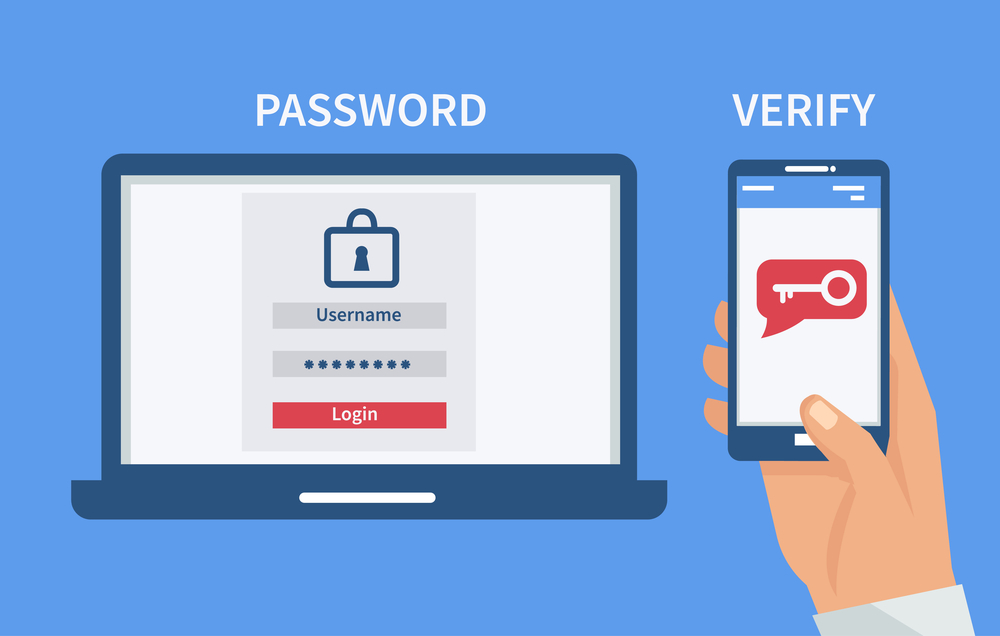
8. Enable Two-Factor Authentication on Your Google Account
Your Google account is connected to everything on your Android phone — email, photos, Drive, app purchases, and more. If someone gains access to it, the damage can be significant.
Go to Settings → Google → Manage your Google Account → Security → 2-Step Verification and set it up. Use an authenticator app (like Google Authenticator) rather than SMS if possible — it’s more secure.
This pairs well with the broader account security practices covered in our guide on How to Protect Your Privacy Online Easily.
9. Adjust Developer Options for Better Performance
Developer Options is a hidden menu in Android that contains settings most users never see — including ones that directly affect how fast your phone feels.
To unlock it: Settings → About Phone → tap Build Number seven times. You’ll see a message confirming Developer Options is enabled.
Go to Settings → Developer Options and change three settings:
- Window animation scale → set to 0.5x
- Transition animation scale → set to 0.5x
- Animator duration scale → set to 0.5x
This makes animations twice as fast, so apps appear to open and switch much more quickly. It’s one of the most satisfying performance changes you can make and takes about ninety seconds.
10. Review Your Default Apps
Android lets you set default apps for key functions — browser, email, messaging, maps. If you’ve installed better alternatives to the pre-loaded apps, make sure your phone is actually using them.
Go to Settings → Apps → Default Apps and check:
- Browser — if you’ve installed Firefox or Brave, set it as default here
- SMS app — if you prefer a different messaging app, set it here
- Maps — if you use Google Maps or another navigation app, confirm it’s set correctly
- Phone — make sure your preferred dialer is set
This prevents the frustrating situation where tapping a link opens a browser you don’t use, or where an address opens in a maps app you’ve replaced.
Frequently Asked Questions
Will changing these settings void my warranty? No. All of the settings in this guide are standard Android features designed to be used by anyone. Developer Options is slightly more advanced, but enabling it and changing animation speeds doesn’t affect your warranty or damage your device.
Do I need to redo these settings after a factory reset? Yes. A factory reset restores all settings to their defaults, so you’d need to go through this list again. It’s worth bookmarking this guide for that reason.
Are these settings the same on all Android phones? The settings exist on all Android phones, but the exact location in the menu varies by manufacturer. Samsung phones (running One UI) and Xiaomi phones (running MIUI) organize settings slightly differently than stock Android. If you can’t find a setting, search for it by name in the Settings search bar.
How do I know which apps are draining my battery? Go to Settings → Battery → Battery Usage. This shows a ranked list of which apps have consumed the most battery since your last charge.
Is it safe to enable Developer Options? For the changes described in this guide, yes. Developer Options contains some settings that can cause problems if changed without understanding what they do — but adjusting animation scales and reviewing basic options is completely safe.
Final Thoughts
These ten settings cover the most impactful changes you can make to an Android phone in the shortest amount of time. Privacy, security, performance, and battery life — all improved with changes that take a few minutes total.
If your phone is still feeling sluggish after making these adjustments, the next step is a more thorough performance tune-up. Our guide on How to Make Your Phone Faster in Simple Steps covers everything from clearing cache to reducing background activity in detail.