
One of Android’s biggest advantages over iPhone is how much you can change about the way it looks and works. Most people use their Android phone exactly as it came out of the box — same launcher, same icons, same layout. But with a few changes, you can build a phone experience that’s genuinely tailored to how you think and work.
This guide covers the most impactful customizations available on Android in 2026, from quick visual changes to deeper adjustments that affect how you interact with your phone every day.
Why Customize Your Android Phone?
Customization isn’t just about aesthetics. A well-configured phone is faster to use, easier to navigate, and less likely to distract you. When your home screen is organized around how you actually use your phone rather than what came pre-installed, every interaction becomes slightly more efficient — and those small gains add up over thousands of daily interactions.
1. Change Your Launcher
The launcher is the app that controls your home screen, app drawer, and dock. It’s the foundation of everything you see and interact with on your phone — and on Android, you can replace it entirely.
The default launcher on most Android phones works fine, but alternatives offer more flexibility, better performance, and features the stock launcher doesn’t have.
Top launcher options in 2026:
Nova Launcher — The most established and customizable option. Control icon size, grid layout, animations, gestures, and virtually every visual element of your home screen. The free version covers most features; the paid version adds a few extras.
Niagara Launcher — A minimalist launcher that replaces the traditional grid of icons with an alphabetical list of your most-used apps. Unusually fast to use once you adjust to it, and very clean visually.
Microsoft Launcher — Integrates with Microsoft 365 and your Windows PC, showing your recent documents, calendar, and to-do list on a swipeable panel. The best option if you use Windows and Microsoft services heavily.
To install a launcher, download it from the Play Store and set it as default when prompted. You can switch back to your original launcher at any time through Settings → Apps → Default Apps → Home App.
2. Create a Minimal Home Screen
Most home screens are cluttered — pages of apps, folders of apps, widgets fighting for space. A minimal home screen is faster to navigate, less cognitively demanding, and makes your phone feel significantly more intentional.
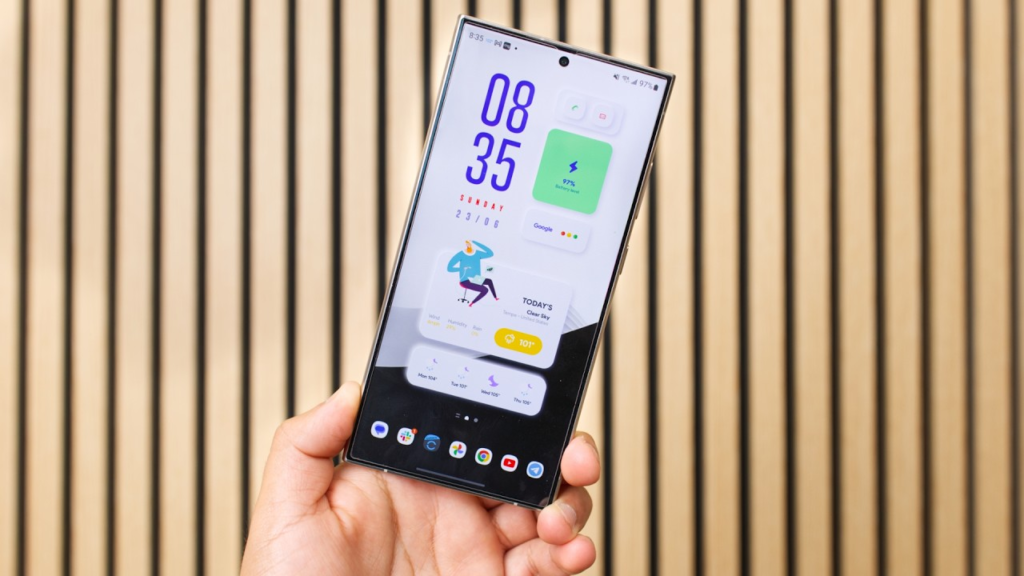
How to build a minimal home screen:
- Keep only 4-6 apps on the main home screen — the ones you open multiple times a day
- Move everything else to the app drawer (accessible by swiping up)
- Use one page only — scrolling through multiple home screen pages wastes time
- Remove widgets you don’t check regularly — they take up space and slow down the launcher
The goal is a home screen where every element earns its place. If you haven’t used an app in the past week, it doesn’t belong on the home screen.
3. Use Icon Packs for a Cohesive Look
If you want your home screen to look polished and consistent, an icon pack replaces the default app icons with a unified set that shares the same visual style.
Thousands of icon packs are available on the Play Store — search “icon pack” and filter by rating. Popular styles in 2026 range from minimalist monochrome sets to vibrant illustrated collections.
To apply an icon pack, you typically need a third-party launcher like Nova Launcher that supports them. Once installed, go to your launcher’s settings and select the icon pack from the appearance options.
4. Set Up Useful Widgets
Widgets display information from apps directly on your home screen without opening the app. Used selectively, they save time — the right widget means you check the information you need with a glance rather than an app open.
Widgets worth adding:
- Google Calendar widget — shows your upcoming events for the day at a glance
- Todoist or Tasks widget — displays your most important tasks for today
- Weather widget — current conditions and forecast without opening an app
- Spotify or music widget — controls playback without unlocking and navigating
Keep widgets minimal. One or two well-chosen widgets are useful; a home screen covered in widgets becomes as cluttered as one covered in apps.
5. Customize Your Always-On Display and Lock Screen
The lock screen and always-on display (on phones that support it) are the first things you see when you pick up your phone. Customizing them means you get useful information before you even unlock.
On Android (varies by manufacturer):
- Go to Settings → Lock Screen to change what information is displayed
- Add shortcuts to frequently used apps (camera, flashlight, etc.) so they’re accessible without unlocking
- Configure the always-on display to show your calendar, next alarm, or media controls
Some manufacturers — particularly Samsung and Google Pixel — have more extensive lock screen customization than others.
6. Set Up Gestures
Gestures let you trigger actions by swiping or tapping on the screen in specific ways, reducing the need to navigate through apps or menus for common tasks.
Built-in Android gestures worth enabling:
- Double tap to wake — tap the screen twice to turn it on without pressing the power button (Settings → Display or Advanced Features depending on your phone)
- Lift to wake — screen turns on when you pick up the phone
- Swipe fingerprint sensor — on phones with a side or rear fingerprint sensor, swiping down on it pulls down the notification shade
Launcher gestures (via Nova Launcher or similar):
- Swipe down on the home screen to open the notification shade
- Double tap the home screen to lock the phone
- Swipe up on a specific app icon to open a shortcut directly
These small shortcuts eliminate friction from common actions you perform dozens of times a day.
7. Customize Your Notification Shade and Quick Settings
The quick settings panel (pulled down from the top of the screen) contains toggles for Wi-Fi, Bluetooth, flashlight, and other settings. On most Android phones, you can customize which toggles appear and in what order.
Pull down the notification shade fully → tap the pencil/edit icon → drag your most-used toggles to the top positions.
Useful toggles to have at the top: Wi-Fi, Bluetooth, Do Not Disturb, Flashlight, Screen Rotation, and Hotspot if you use it regularly.
8. Use Tasker or Shortcuts for Automation
For users who want to go deeper, automation apps let you create rules that trigger actions automatically based on conditions — time, location, app usage, battery level, and more.
Tasker (Android) — the most powerful automation app available. Set your phone to automatically enable Do Not Disturb when you arrive at work, turn on Wi-Fi when you get home, or send an automatic reply when your battery drops below 10%. The learning curve is steeper than other apps on this list, but the possibilities are extensive.
MacroDroid — a more accessible alternative to Tasker with a simpler interface. Less powerful but easier to set up for common automation tasks.
Automation reduces the number of manual interactions you need to have with your phone every day — which is both a time saver and a distraction reducer.
9. Set Up a Custom Font and Display Settings
Most Android phones allow you to change the system font, display size, and text size — adjustments that affect readability and how much information fits on screen at once.
Settings → Display → Font Size and Style (varies by manufacturer)
A slightly smaller display size fits more content on screen, which reduces scrolling. A larger size is easier to read. Find the balance that works for your eyes and how you use your phone.
On Samsung phones, Good Lock (a free Samsung app) offers significantly deeper customization of fonts, animations, and display elements than standard Android settings.
10. Back Up Your Setup
Once you’ve built a home screen and phone configuration you’re happy with, back it up. If you reset your phone, switch devices, or something goes wrong, restoring your setup from scratch takes hours.
Nova Launcher has a built-in backup feature that saves your entire layout — go to Nova Settings → Backup & Import. Google’s system backup also saves some launcher settings, but a dedicated launcher backup is more complete.
For a full guide on backing up everything on your phone, see our article on How to Back Up Your Phone Data.
Frequently Asked Questions
Will customizing my phone void my warranty? No. All the changes in this guide use standard Android features and Play Store apps. None of them modify the operating system or require rooting, which is the only customization that could affect your warranty.
Does using a third-party launcher drain more battery? Minimally. A well-designed launcher like Nova or Niagara uses negligible additional battery compared to the stock launcher. Poorly optimized launchers with excessive animations can have a small impact, but it’s rarely significant.
Can I revert all customizations easily? Yes. Every change in this guide can be undone. Launchers can be switched back, icon packs can be removed, widgets can be deleted, and gestures can be disabled. Nothing is permanent.
Do these customizations work on all Android phones? Most of them work across all Android phones, though the exact location of settings varies by manufacturer. Samsung (One UI), Xiaomi (HyperOS), and stock Android (Pixel) organize settings differently. If you can’t find a setting, search for it by name in the Settings search bar.
Is it worth learning Tasker for automation? If you’re comfortable with technology and find yourself doing the same manual phone tasks repeatedly, yes. The initial investment of time pays back quickly for frequent automations. If you want simpler automation, MacroDroid or the built-in Routines feature on Samsung phones covers the most common use cases without the learning curve.
Final Thoughts
Customizing your Android phone isn’t about making it look different for its own sake — it’s about building a device that works the way you think and fits the way you actually use it. A minimal home screen, the right widgets, useful gestures, and a launcher that suits your style all contribute to a phone that’s faster and more pleasant to use every day.
Start with your home screen and launcher — those two changes have the most immediate impact. Add other customizations gradually as you identify what would genuinely improve your daily experience.
For a broader look at the settings worth changing on any Android phone, our guide on 10 Settings You Should Change on Your Android Right Away covers the adjustments that make the biggest difference to performance, privacy, and usability.